Complete Installation & Configuration Guide for Courier Center Voucher for WooCommerce
In this guide you’ll see, step by step, how to install and configure
Courier Center Voucher for WooCommerce, how to correctly enter the test/live
API credentials, complete the required test scenario and use the plugin daily
directly from WooCommerce orders.

What we are going to configure
Courier Center Voucher for WooCommerce connects your store with Courier Center API/Web Services, so you can issue, print, cancel and track vouchers directly from WooCommerce orders.
1) Before you start
To use the plugin, Courier Center API credentials are required. Typically, Courier Center provides test credentials first for the staging environment and, after the test is successfully completed, provides the live credentials for production.
You will need:
- Username / UserAlias
- Password / CredentialValue
- API Key
2) Installation & activation
Installation works like any other WooCommerce plugin.
.zip file you downloaded after purchase.
3) API connection settings
Open the plugin settings page, for example from VGDev Solutions → Courier Center.
API connection details
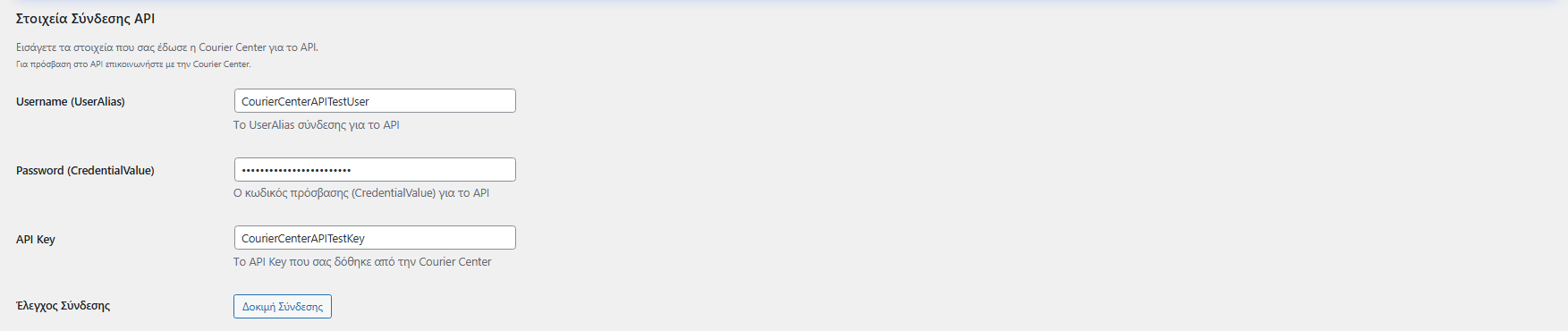
In the API Connection Details section, fill in:
- Username / UserAlias
- Password / CredentialValue
- API Key
Save & test connection
- First click Save Settings so the new credentials are stored.
- Then click Test Connection to confirm that communication with Courier Center works correctly.
4) General settings
In the General Settings section, you will find options that affect the daily plugin workflow.
Default weight
The Default weight (kg) field works as a fallback when the order weight cannot be calculated.
- If you leave the field empty, the plugin automatically gets the product weights from WooCommerce and calculates the total order weight.
- If some products do not have weight, set a safe value such as
1, so voucher creation does not fail.
Label / print size
From the Label Size field, you select the default voucher print format, depending on how you print your vouchers.
- A4 / A4 Clean for A4 printing.
- Single PDF / Single Clean for one voucher per PDF.
- Single 100×150 / Clean 100×150 for 100×150 mm label format.
- Single 100×170 / Clean 100×170 for 100×170 mm label format.
Convert to uppercase
If you want recipient details, such as address and other fields, to be sent in uppercase without accents, enable the corresponding option.
Change order status
You can set an automatic order status change when a voucher is created, or keep the setting without change.

5) Test mode
Courier Center usually asks you to confirm that the main parts of the integration work correctly.
- Voucher creation.
- Voucher printing.
- Voucher cancellation.
Example test credentials
Test credentials may have a format like:
- User:
CourierCenterAPITestUser - Password:
CourierCenterAPITestUser - ApiKey:
CourierCenterAPITestKey
Fill these into the corresponding Username, Password and API Key fields.
Step-by-step test
- Enter the test credentials in the plugin settings and click Save Settings.
- Click Test Connection and confirm the connection is successful.
- Create a test WooCommerce order or open an existing order with status Processing.
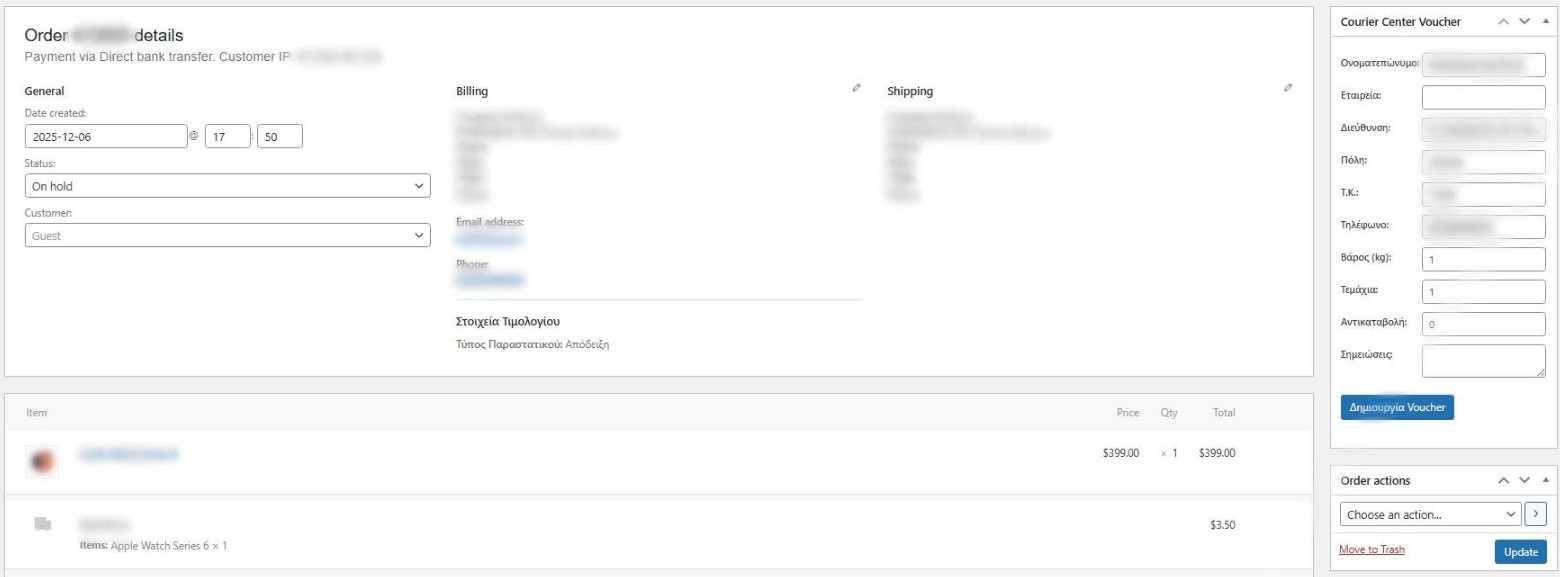
- In the order’s right sidebar, inside the Courier Center Voucher box, click Create voucher.
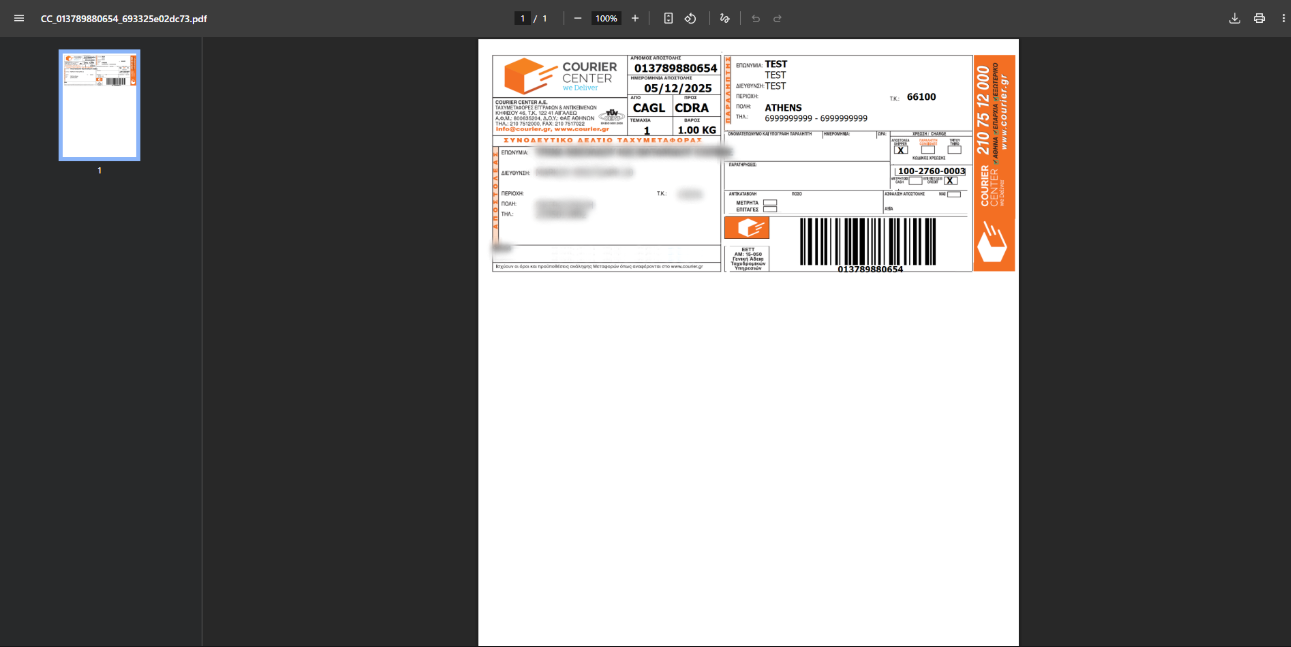
- Click Print and save the voucher PDF.
- To complete the test scenario, click Cancel.
- Inform Courier Center that the test was completed and attach the test voucher PDF.
- Wait for the live credentials and replace them in the plugin settings.
6) Create voucher from the order
After configuration, the main workflow happens directly inside each WooCommerce order.
- Go to WooCommerce → Orders.
- Open the order.
- In the Courier Center Voucher box, click Create voucher.
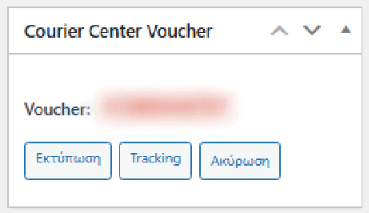
After the voucher is created, options usually become available, such as:
- Print: download the voucher PDF.
- Tracking: view shipment tracking, when supported or returned.
- Cancel: cancel the voucher when needed.
Useful information
In the voucher panel, you may see fields such as:
- Parcels, usually with default value 1.
- Weight.
- Cash on delivery, when the payment method is COD.
- Comments.
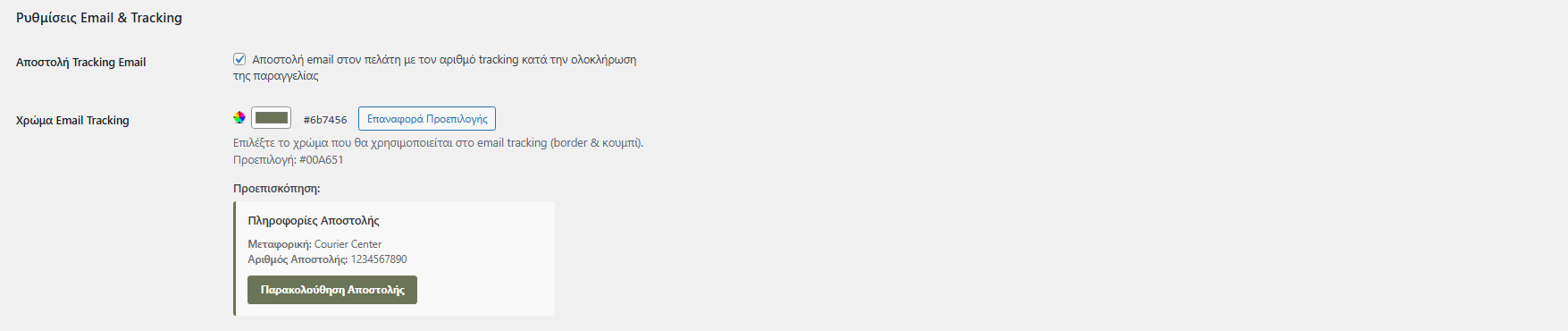
7) Email Tracking & Preview
In the Email & Tracking Settings section, you can enable customer notification for shipment tracking.
- Send a tracking email to the customer when the order is completed.
- Select a color for the tracking email, such as button or border color.
- Preview the email before enabling it.
8) Debug Mode
There is a Debug Mode option that logs requests and responses to a log file for troubleshooting.
Use it when:
- Voucher creation fails.
- There is a printing or PDF download issue.
- You need to send technical information to support.

9) Frequently Asked Questions
- Make sure you clicked Save Settings before testing the connection.
- Check that the Username / Password / API Key are correct.
- Check whether your hosting firewall or security system blocks outgoing requests.
- Check that the order weight is not
0. - Add product weights or set a Default weight.
- Confirm that recipient details are correct, such as address, postcode and phone number.
- It is sent when the order is completed and a tracking number or shipment number is available.
- The exact behaviour depends on the related plugin setting.
10) Print dimensions
The plugin supports the print templates / formats available through Courier Center Web Services. From the Label Size setting, you can choose:
- A4: standard A4 printing.
- A4 Clean: A4 printing in clean format.
- Single PDF: one voucher per PDF file.
- Single Clean: one voucher per PDF in clean format.
- Single 100×150: one voucher in 100×150 mm.
- Clean 100×150: 100×150 mm in clean format.
- Single 100×170: one voucher in 100×170 mm.
- Clean 100×170: 100×170 mm in clean format.
11) Support
For any issue or question regarding the plugin setup or operation, you can contact technical support.