
Complete Installation & Configuration Guide for Skroutz Smart Cart for WooCommerce
In this guide you’ll see step-by-step how to install and configure the plugin so you can receive orders from Skroutz (Smart Cart) inside WooCommerce, using the API Key and Webhook URL exactly as they appear in the plugin settings.
Περιεχόμενα
1) Before you start (requirements)
To ensure the integration works correctly, you will need:
An active WordPress website with WooCommerce installed.
Access to the Skroutz Merchant panel (for API token & Webhook).
SSL (https) enabled on your domain.
Your products must “match” what Skroutz sees (i.e. your current Smart Cart/marketplace setup should already be in place).
2) Installation & activation
Installation is the same as with any WooCommerce plugin:
Log in to WordPress as an administrator.
Go to Plugins → Add New.
Click Upload Plugin.
Select the .zip file from your purchase.
Click Install Now and then Activate.
3) License activation
On the plugin settings page you will see “License Required” until the license is activated.
Click Activate License and enter the license details you received with your purchase.
Once activated, you’ll be able to use the plugin features normally.
4) API Configuration (API Key + Webhook URL)
4.1 API Key (from Skroutz)
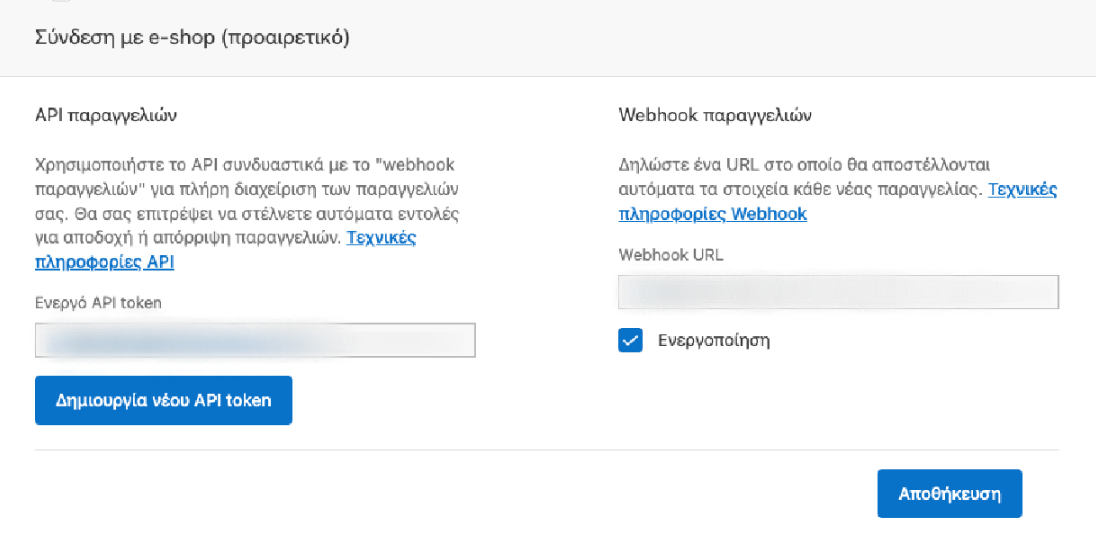
In the Skroutz Merchant panel, under the e-shop connection section:
Find Orders API.
Click Create new API token.
Copy the token.
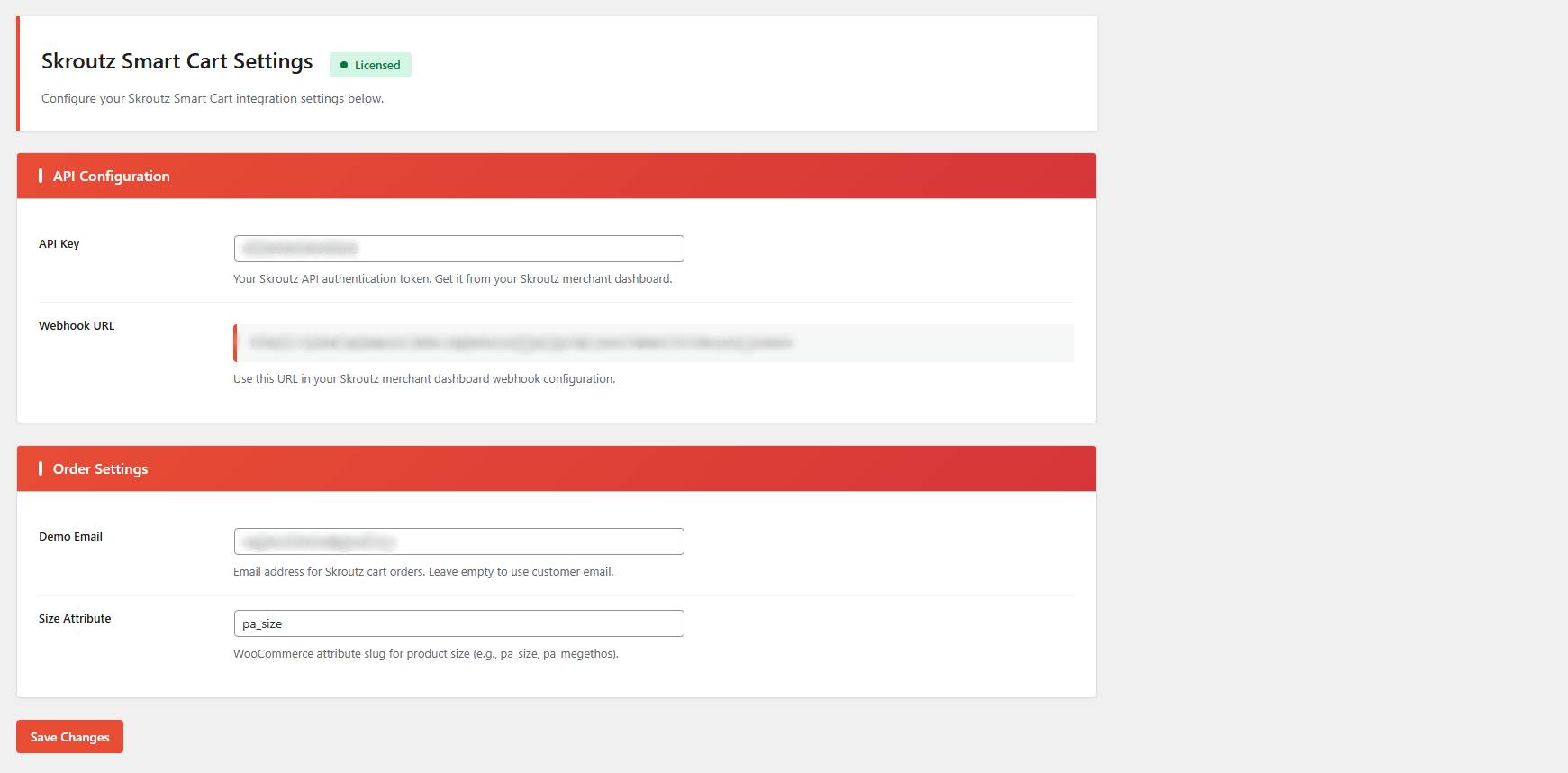
In WordPress → plugin settings → API Configuration → API Key field, paste the token.
4.2 Webhook URL (from the plugin to Skroutz)
In the plugin settings you will see a ready-to-copy Webhook URL (e.g. an endpoint like /wp-json/...).
Copy the Webhook URL from the plugin.
In the Skroutz Merchant panel, under Orders Webhook:
Paste it into the Webhook URL field
Enable the checkbox Enable
Click Save in Skroutz.
From this point on, new Smart Cart orders will be sent to your site via webhook.
5) Order Settings (Demo Email + Size Attribute)
5.1 Demo Email
In the Demo Email field you can set an email address that will be used for Smart Cart orders.
If you leave it empty: the plugin (as stated in the UI) may use the customer’s email.
If you set a demo email: useful for staging/testing or when you want all such orders to “land” under a single email address.
5.2 Size Attribute
The Size Attribute field expects the WooCommerce attribute slug that represents size (e.g. pa_size, pa_megethos).
Find it under Products → Attributes and use the slug.
If Skroutz sends size selections and you want correct variation matching, this setting is important.
6) Testing the integration
To confirm everything works:
Make sure that:
You have entered a valid API Key in the plugin
You have pasted the plugin’s Webhook URL into Skroutz
The webhook is Enabled and you have clicked Save
Place a test order from the Skroutz environment (if available).
Check WooCommerce → Orders to confirm a new order has been created.
7) Frequently Asked Questions (FAQ)
Orders are not coming into WooCommerce, what should I check?
Did you click Save in Skroutz after adding the webhook?
Is the webhook Enabled?
Is your site accessible via https, and are requests blocked by a firewall/WAF/cache/security plugin?
API Key is wrong/expired
Create a new API token in Skroutz and replace it in the plugin.
Sizes/variations are not matching correctly
Make sure Size Attribute contains the correct slug (e.g. pa_size) and that your variations are actually using that attribute.
8) Support
For any issue or question regarding setup/operation, you can contact technical support at:
info@vgdevsolutions.gr