
Complete installation & configuration guide for Speedex Voucher for WooCommerce
In this guide you will see step-by-step how to install and configure Speedex Voucher for WooCommerce, how to correctly enter Speedex test/live Web Services, how to complete the required test scenario (voucher issue/print/cancel), and how to use the plugin daily directly from WooCommerce orders, with tracking & email notifications.
Contents
1) Before you start (Web Services from Speedex)
For the plugin to work, Speedex Web Services are required. Speedex typically provides test credentials first (test environment) and, after the test process is successfully completed, provides the live credentials (production).
You will need:
Username
Password
Customer ID
Agreement ID
Note: You may have more than one agreement. In that case, use the corresponding Customer ID / Agreement ID provided by Speedex.
2) Installation & activation
Installation is the same as with any WooCommerce plugin:
Log in to WordPress with administrator permissions.
Go to Plugins → Add New.
Click Upload Plugin.
Select the .zip file you downloaded after purchase.
Click Install Now and then Activate.
3) API connection settings (Web Services)
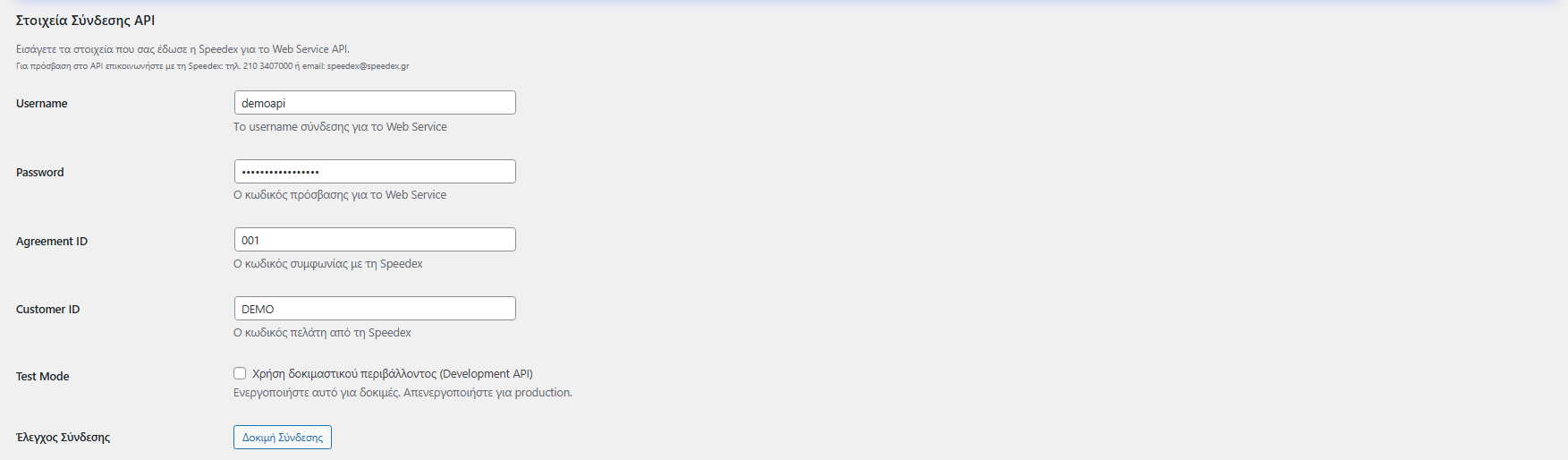
Open the plugin settings page (e.g. from VGDev Solutions → Speedex Courier).
In the API connection details section, enter:
Username
Password
Agreement ID
Customer ID
Save & Connection Test (correct order)
After you enter the credentials:
Click Save settings first, so the new data is stored.
Then click Connection Test to confirm that communication with Speedex is working properly.
Test Mode
If the credentials you received are for testing, enable:
Test Mode / Development API
If the credentials are live (production), keep Test Mode disabled.
4) General settings (weight, printing, automations, status, etc.)
In the General Settings section you will find options that affect day-to-day operation.
Default weight (kg)
The Default weight (kg) field acts as a “fallback” when weight cannot be calculated.
If you leave the field empty, the plugin will automatically pull weights from your products (as set in WooCommerce) and calculate the total order weight based on them.
If you have products without weight, it is useful to set a safe value (e.g. 0.5kg) to avoid issues when issuing vouchers.
Important: Voucher issuance cannot be completed for orders with zero weight.
Tip: Ideally, set a weight on all products for accurate calculations.
Printing size
From the Printing Size field you can choose the default voucher print format. Depending on the options supported by the plugin/Speedex, you may see options such as:
A4
A5
A6
10×21 cm
Convert to uppercase
If you want recipient details (address, etc.) to be converted to uppercase (without accents), enable this option.
Change order status
If you wish, you can set an automatic status change when a voucher is created (or leave it with no change).

5) Test operation (Speedex test scenario)
Speedex typically requires confirmation that the following work correctly:
voucher issuance
voucher printing
voucher cancellation
Instructions for entering test Web Services
Example format of test credentials:
Credentials:
Username: demoapi
Password: GOOD-GO-HOME-GUYS
Agreements (CustomerId–AgreementId):
DEMO–001
DEMO–002
DEMO–003
DEMO–004
Enter Username / Password in the Username / Password fields.
Then choose a Customer ID (e.g. DEMO) and an Agreement ID (e.g. 001) and enter them in the Customer ID / Agreement ID fields.
Finally, enable Test Mode.
Step-by-step test
Enter the test Web Services in Settings and click Save settings.
Enable Test Mode and click Save settings again (if required).
Create a test order or open an existing order Processing.
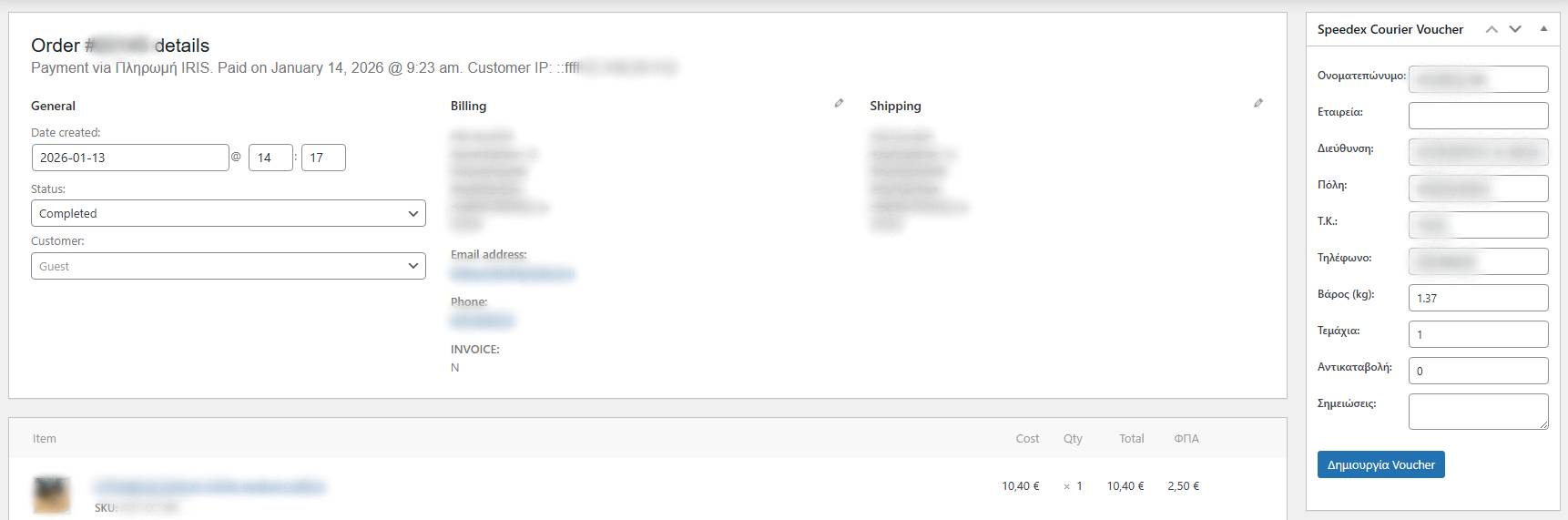
In the right sidebar, inside the Speedex Courier Voucher box, click Create voucher.
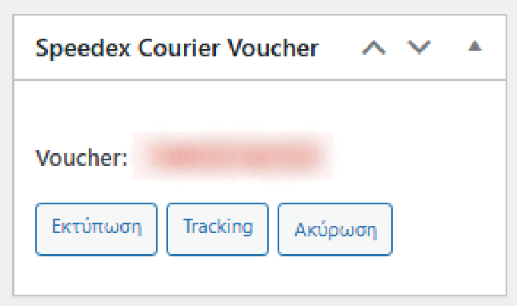
Once it is successfully created, the voucher number appears and the buttons become available:
Print
Tracking
Cancel
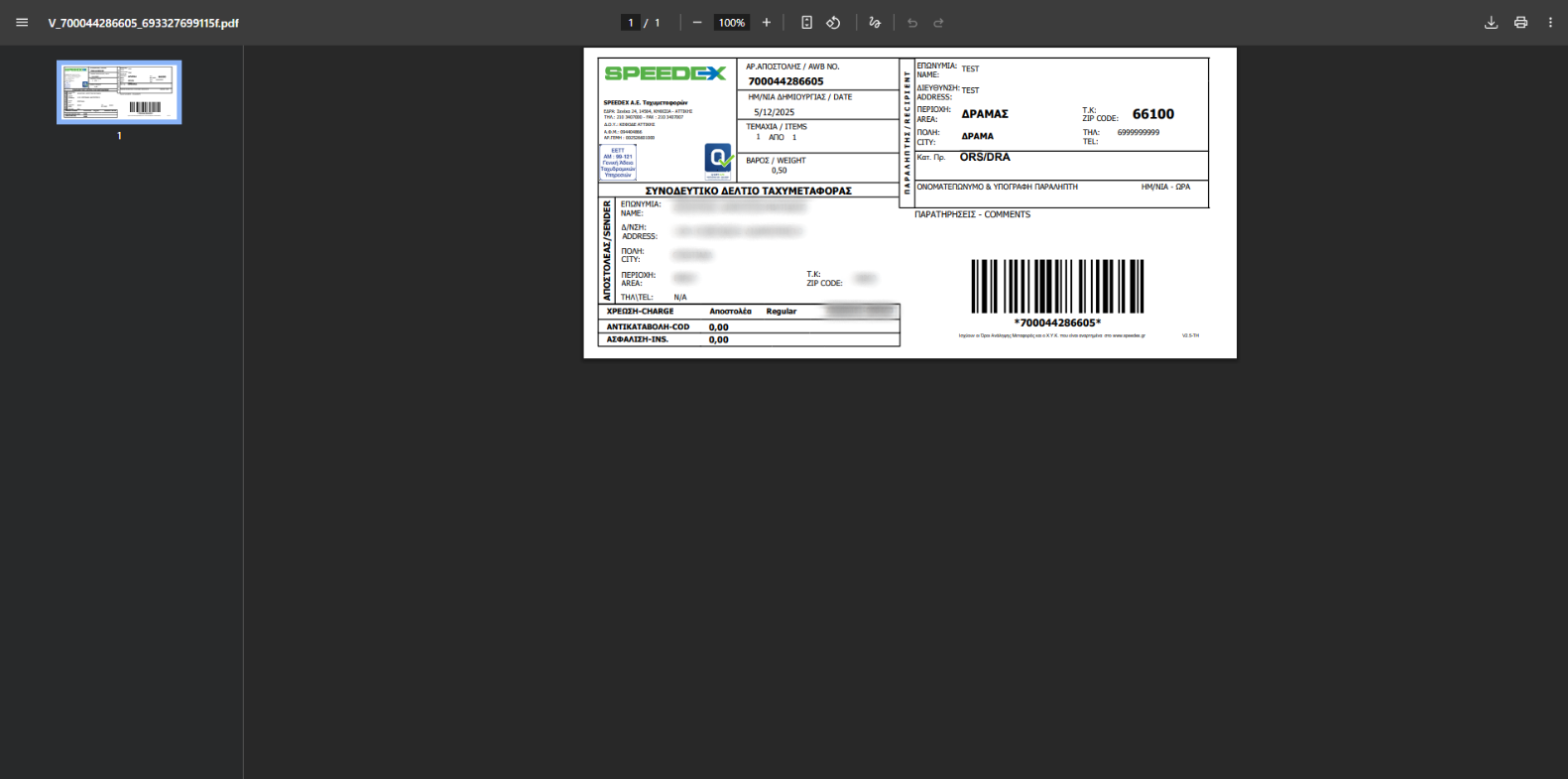
Click Print and save the voucher PDF.
To complete the test scenario, click Cancel.
Notify Speedex that the test is completed and attach the voucher PDF.
Wait for the live Web Services and replace the test credentials in the settings.
Disable Test Mode and click Save settings.
Attention: Don’t forget to disable the test environment after switching to live credentials.
6) Issuing a voucher from the order (daily use)
After setup, management is done directly from the order:
Go to WooCommerce → Orders
Open the order
In the Speedex Courier Voucher box, click Create voucher
After issuance, you can use:
Print: download the voucher PDF
Tracking: view shipment tracking
Cancel: cancel the voucher when needed
Helpful info (voucher fields)
Inside the voucher panel you may see fields such as:
Parcels: number of parcels (default 1)
Weight: set manually if it can’t be calculated automatically
Pickup date: the date the parcel was handed to the courier
COD: appears when the payment method is cash on delivery (can be adjusted)
Saturday delivery: to be printed on the voucher
Comments: additional shipping notes
Important about cancellation
At the bottom of the panel there is a Cancel option for the created voucher. However, before canceling, it is recommended/required to communicate with Speedex (as per their process).
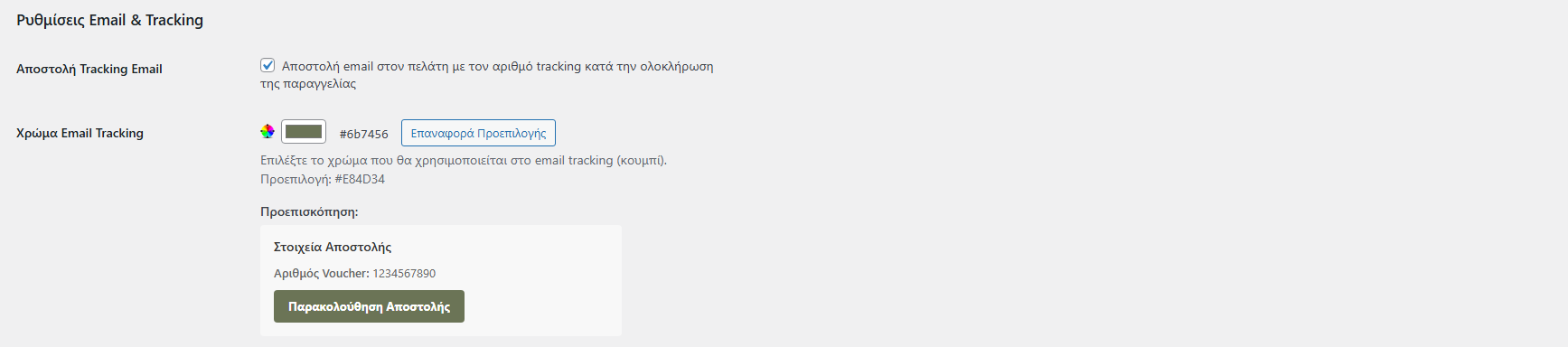
7) Email Tracking & Preview
In the Email & Tracking Settings section you can enable:
Send Tracking Email to the customer when the order is completed
Choose a color for the email tracking button/style
Preview to see how the email will look before enabling it
8) Debug Mode (logs)
There is a Debug Mode option to log API requests/responses to a log file for troubleshooting.
Use it when:
voucher creation fails
there is an issue printing/downloading the PDF
you need to send technical information to support
Attention: Don’t keep Debug Mode enabled unless needed.

9) Frequently Asked Questions (FAQ)
The voucher is not issued, what should I check first?
Make sure you clicked Save settings before Connection Test.
Check that the order weight is not 0.
Confirm that Customer ID / Agreement ID are correct.
When should I enable Test Mode?
Only when you are using test credentials. With live credentials, Test Mode must be disabled.
My products have no weight — what should I do?
Enter weights for your products or set a Default weight (e.g. 0.5kg) so voucher issuance won’t be blocked.
10) Printing sizes
The plugin supports the available voucher print sizes provided by Speedex via Web Services. From “Label Size” you can choose:
A4: print in A4 size
A5: print in A5 size
10×21 cm: print in 10×21 cm dimensions
A6: print in A6 size
Note: Vouchers are generated in the exact dimensions returned by Speedex Web Services. Choose the size that matches your printing workflow (A4 printer, label/thermal printer, etc.).
11) Support
For any issue or question regarding the setup/operation of the plugin, you can contact our technical support at info@vgdevsolutions.gr