
What problem are we solving?
When bots repeatedly hit WooCommerce categories, product pages, search URLs, or other dynamic endpoints,
each request can reach PHP. That means cache is not always enough, and the site can start filling up
with index.php processes.
The goal is to block bad requests as early as possible, before the full WordPress stack loads.
How to confirm it is bots
1. Check Resource Usage / Snapshot
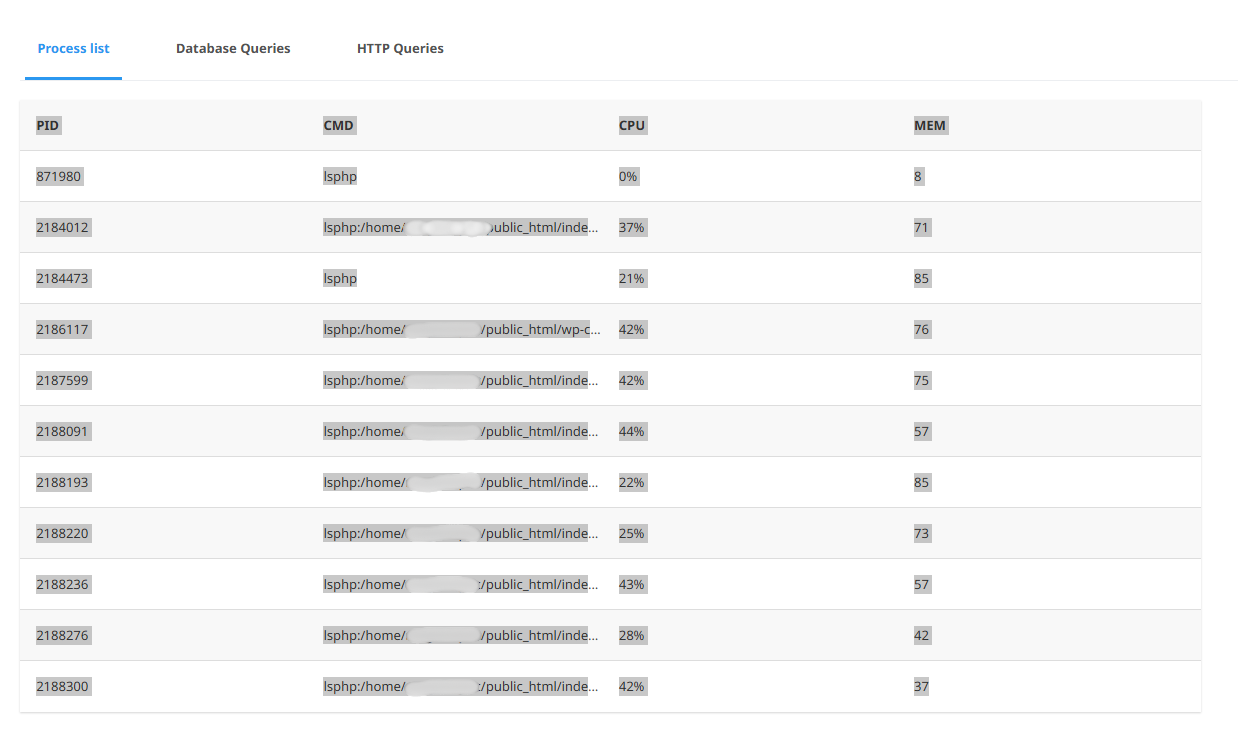
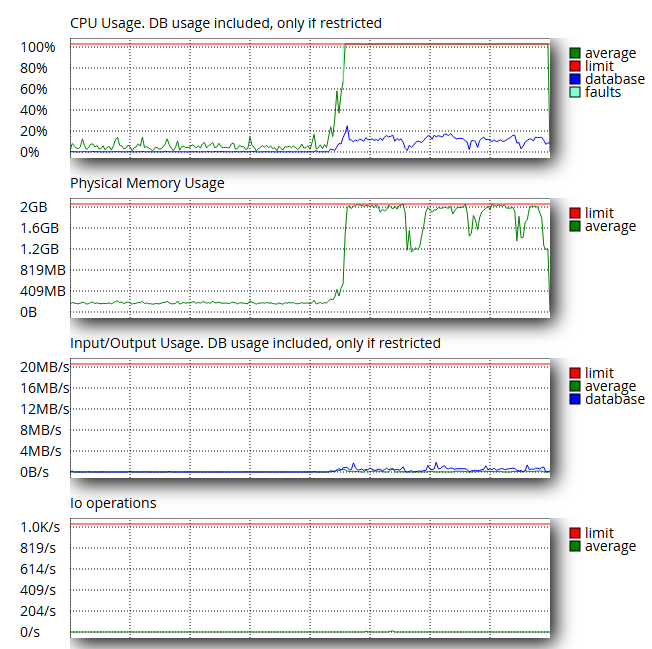
On cPanel hosting, especially CloudLinux-based environments, go to Resource Usage → Snapshot and look for these signs:
- Many
lsphp:/home/.../public_html/index.phpprocesses. - Repeated requests to
wp-cron.php. - CPU that stays high even when you are not actively testing the website.
2. Check Wordfence Live Traffic
Go to Wordfence → Tools → Live Traffic and look for patterns like:
- The same page being hit repeatedly, for example
/product-category/.... - Lots of different IPs within a short time window.
- IPs from unexpected locations.
- Missing, strange, or automated user agents.
57.141.4.17, 57.141.4.61,
57.141.4.64 hammering the same URL, you are probably looking at a bot wave from a specific range.
The .htaccess snippet solution
Add the snippet below to your root .htaccess file, above
# BEGIN WordPress.
- Blocks
xmlrpc.php, which is commonly abused by bots. - Blocks known scrapers and headless tools by User-Agent.
- Lets you add IP ranges when you see a real bot wave.
# =======================================================
# Simple Anti-Bot Shield (Apache / LiteSpeed)
# Paste ABOVE: # BEGIN WordPress
# =======================================================

# 1) Block XML-RPC
<Files "xmlrpc.php">
  Require all denied
</Files>

<IfModule mod_rewrite.c>
RewriteEngine On

# 2) Allow Google
RewriteCond %{HTTP_USER_AGENT} (Googlebot|Google-InspectionTool|AdsBot-Google|Mediapartners-Google) [NC]
RewriteRule .* - [S=3]

# 3) Block empty / missing User-Agent
RewriteCond %{HTTP_USER_AGENT} ^$ [OR]
RewriteCond %{HTTP_USER_AGENT} ^-$
RewriteRule .* - [F,L]

# 4) Block common scrapers and headless browsers
RewriteCond %{HTTP_USER_AGENT} (curl|wget|python-requests|scrapy|aiohttp|httpclient|Go-http-client|libwww-perl|okhttp|node-fetch|axios|postman|httpie|PycURL|HeadlessChrome|PhantomJS|Puppeteer|Playwright|selenium) [NC]
RewriteRule .* - [F,L]

# 5) Block generic bot keyword except Googlebot
RewriteCond %{HTTP_USER_AGENT} bot [NC]
RewriteCond %{HTTP_USER_AGENT} !googlebot [NC]
RewriteRule .* - [F,L]
</IfModule>

# 6) OPTIONAL: Block attacker IP ranges
<RequireAll>
  Require all granted

  # Example:
  # Require not ip 57.141.4.0/24
</RequireAll>.htaccess, keep a backup of the file. One wrong rule can cause a 500 error.
Do you need IP blocking for this to work?
Not always. If the problem is mostly “easy” scrapers, User-Agent rules may reduce the load enough. But if you are getting a bot wave with normal-looking User-Agents, IP blocking is usually what actually stops the flood.
How to block the correct IP range
57.141.4.17, 57.141.4.61, 57.141.4.64.
57.141.4.0/24.
/24 and do not block huge ranges blindly.
<RequireAll>
  Require all granted
  Require not ip 57.141.4.0/24
</RequireAll>57.141.0.0/24 does not block 57.141.4.*.
A /24 range only covers the last block of that exact third block.
What not to do
- Do not block Googlebot by IP. Google crawling IPs change and should not be guessed.
- Do not block large ranges such as
/16without clear confirmation from logs. - Do not mix old syntax like
deny fromwith modernRequire not ip.
Quick checklist after activation
- Open Wordfence Live Traffic again and check if attacker IPs now receive 403 responses.
- Check cPanel to see whether
index.phpprocesses have decreased. - Monitor whether CPU starts dropping within the next few minutes.
- Remove IP blocks that are no longer needed or that affect legitimate visitors.
When this is not enough
If your site receives frequent bot waves, .htaccess helps, but it does not replace a proper
WAF or rate limiter. The long-term solution is to have a protection layer before the request reaches WordPress.
- Keep the User-Agent shield active.
- Monitor Wordfence Live Traffic regularly.
- Add or remove
/24blocks only when confirmed by logs. - For frequent attacks, consider WAF/rate limiting at proxy or CDN level.